Windows 11 KB5120998 Update Brings 35 Changes and Fixes: What Users Need to Know
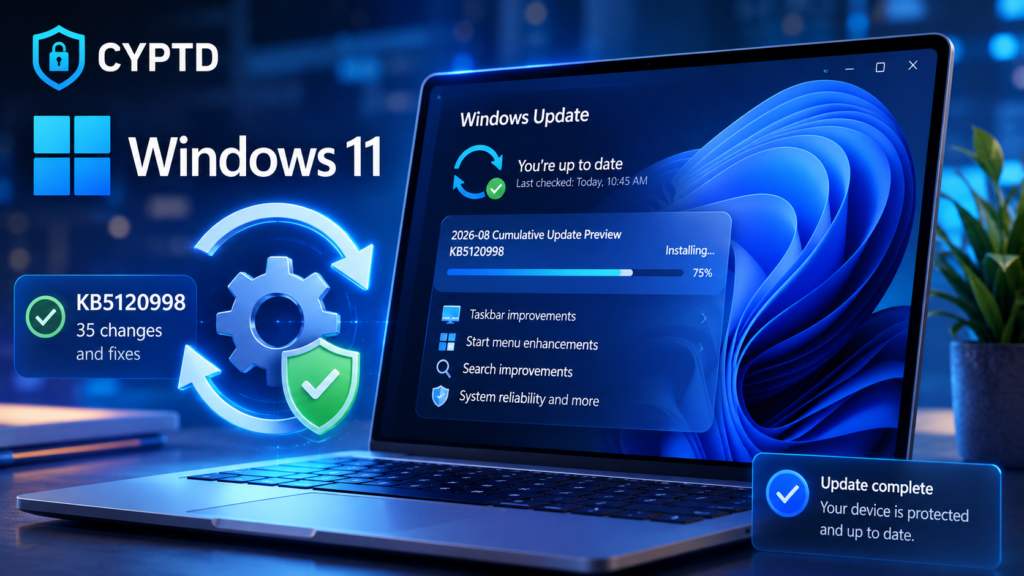
Microsoft has released KB5120998, a new preview cumulative update for Windows 11 versions 24H2 and 25H2. The optional update introduces 35 changes and fixes across the operating system, with several of them focused on improving everyday usability, search functionality, the Start menu, and taskbar customization.
Unlike Microsoft’s regular Patch Tuesday security updates, KB5120998 is a non-security preview update. Its primary purpose is to allow users, organizations, and IT administrators to test upcoming fixes and improvements before they are included in the next mandatory monthly update. This makes preview releases particularly relevant for businesses that want to identify compatibility issues before broader deployment.
At the same time, the release highlights an important aspect of modern endpoint management: keeping Windows systems updated is essential, but organizations should also understand what each update changes before deploying it widely. This is especially important because Microsoft has already acknowledged issues affecting some systems after KB5120998 was installed.
Microsoft Releases Windows 11 KB5120998 With 35 Changes
Microsoft released KB5120998 on August 27, 2026, for Windows 11 versions 24H2 and 25H2. The update raises the operating system builds to 26100.9278 for version 24H2 and 26200.9278 for version 25H2.
Because KB5120998 is an optional preview update, it does not contain the security fixes delivered through the monthly Patch Tuesday release. Instead, Microsoft is using the update to test quality improvements and new functionality before those changes are incorporated into a future production update.
Among the most visible changes are new customization options for the Windows taskbar. Users can now move the taskbar to the top, left, or right side of the screen, in addition to the traditional bottom position. Microsoft has also introduced a smaller taskbar option designed to reduce the amount of screen space occupied by the taskbar and its icons.
The Start menu has received several customization improvements as well. Users can select different Start menu sizes and independently control the visibility of the Pinned, Recommended, and All sections. Microsoft has also added options for hiding the account name and profile picture.
Improved Windows Search
KB5120998 also changes how Windows Search handles frequently used locations. Windows can automatically index commonly accessed folders so that files stored in those locations can appear more quickly in future search results.
The feature can be controlled through Windows’ privacy and search settings, giving users the option to decide whether Windows should automatically identify additional relevant locations.
For users who frequently work with large numbers of documents and files, this could make Windows Search more useful, while also giving administrators another setting to consider when managing corporate devices.
Administrator Protection and Other Changes
Another notable addition is the beginning of Microsoft’s rollout of Administrator protection, a security feature designed to reduce the risks associated with administrative privileges.
The feature uses just-in-time privileges and profile separation to provide additional protection against elevation-of-privilege attacks. Microsoft says that Administrator protection is disabled by default and can be enabled through Microsoft Intune or Group Policy.
KB5120998 also improves Windows Update behavior and recovery mechanisms. Microsoft has added support for participating applications to coordinate their own updates with Windows Update, while other changes improve resilience against VPN-related background issues that can cause processes to become unresponsive.
The update also continues Microsoft’s removal of the legacy Windows Management Instrumentation Command-line utility, better known as WMIC. Beginning with the August 2026 updates, WMIC is no longer included in Windows 11 24H2 and 25H2. The utility had already been removed by default from new installations and is no longer available as a Feature on Demand.
KB5120998 Also Shows Why Preview Updates Should Be Tested
Although KB5120998 introduces a considerable number of improvements, organizations should be cautious about treating preview updates as routine production patches.
Microsoft has subsequently confirmed reports that the update can reset or change mouse cursor personalization settings. In affected systems, users may find that customized cursor settings are reverted to standard configurations and may not be able to restore their previous settings normally.
This is a useful reminder that even updates designed primarily to improve Windows can introduce unexpected compatibility or usability problems.
For home users, this may simply mean waiting until the preview update becomes part of a regular release. For organizations, however, preview updates can provide a valuable opportunity to test changes against real applications, hardware configurations, security software, VPN clients, and management tools before deployment at scale.
Why Regular Patching Remains Critical
The fact that a preview update may contain bugs should not be interpreted as a reason to delay security updates indefinitely. Regular patching remains one of the most important basic security practices for Windows environments.
Attackers routinely exploit vulnerabilities in operating systems, applications, drivers, and other components. Once a vulnerability becomes public and a security patch is available, organizations that have not updated their systems can become increasingly attractive targets.
Microsoft’s August 2026 Patch Tuesday release illustrates the scale of the problem. The company addressed hundreds of vulnerabilities in its monthly security updates, including vulnerabilities that had already been publicly disclosed or exploited.
For this reason, organizations should distinguish between optional preview updates such as KB5120998 and security updates released as part of Patch Tuesday.
A sensible patch-management strategy typically involves testing updates, prioritizing security fixes, monitoring vendor advisories, and deploying patches in controlled stages. Critical systems can first be updated in a test or pilot group, followed by broader deployment once administrators have confirmed that applications and business processes continue to work correctly.
Regular patching also reduces the window of opportunity available to attackers. An unpatched vulnerability can remain exploitable for weeks or months, particularly on systems that are rarely monitored or updated.
What Windows 11 Users Should Do
Because KB5120998 is an optional preview update, users do not necessarily need to install it immediately. Those who want to test the new features can access Windows Update and manually select the option to download and install the update.
IT administrators and security teams should evaluate the update in controlled environments before deploying it across large fleets of Windows 11 devices. This is particularly important for systems that rely on specialized software, VPN clients, endpoint security products, or customized Windows configurations.
For users who prefer stability over early access to new features, waiting for the changes to be incorporated into a regular Microsoft update may be the safer approach.
Conclusion
Windows 11 KB5120998 is more than a collection of minor bug fixes. The preview update introduces 35 changes covering the taskbar, Start menu, Windows Search, Windows Update, administrator protection, and the gradual removal of legacy components such as WMIC.
However, the update also demonstrates the trade-off involved in installing preview software. While early adopters and IT teams can benefit from testing upcoming Windows improvements, unexpected issues can affect the user experience. The reported mouse-settings problem is a good example of why preview updates should be evaluated carefully before broad deployment.
For organizations, the bigger lesson is that effective patch management requires balance. Preview releases should be tested and monitored, while security updates should be prioritized and deployed within a well-defined patching process. Keeping Windows systems consistently updated remains one of the simplest and most effective ways to reduce exposure to known vulnerabilities and maintain a more resilient endpoint environment.