Flare VM: The Ultimate Windows-Based Malware Analysis Environment
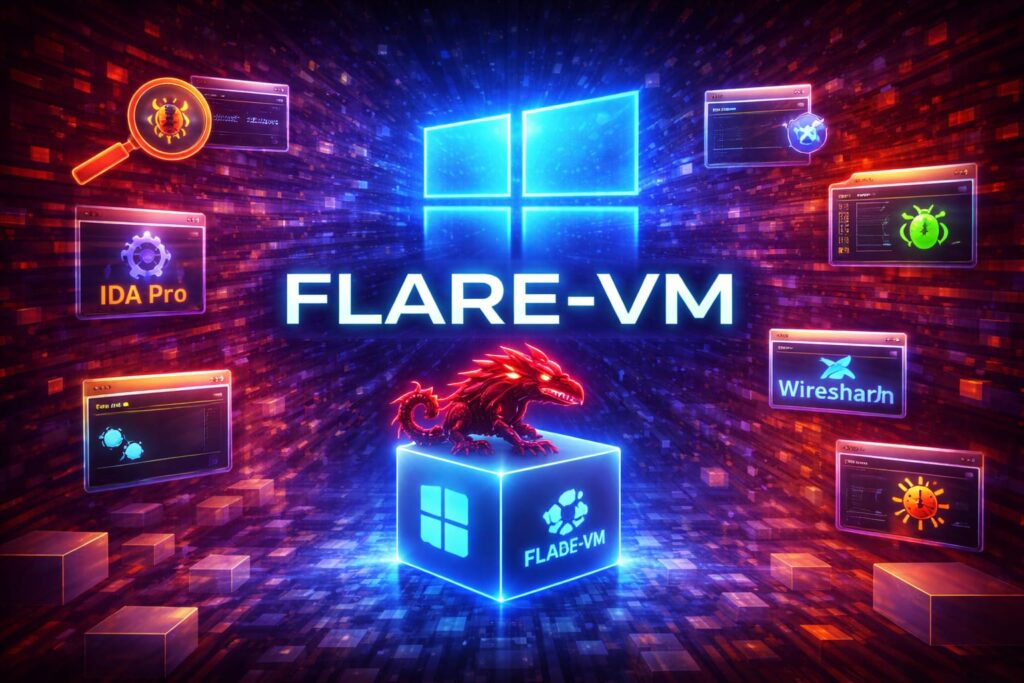
In cybersecurity, preparation is everything. A single wrong move can let malware escape containment or corrupt your system. Flare VM is a Windows-based virtual machine packed with hundreds of pre-installed tools designed for malware analysis, reverse engineering, and incident response. Whether you are a beginner in malware research or a seasoned security analyst, Flare VM provides a ready-to-use, isolated, and powerful environment for understanding malicious software.
In this comprehensive guide, we’ll cover what Flare VM is, how to set it up, its top pre-installed tools, and practical examples for both static and dynamic malware analysis.
What is Flare VM?
Flare VM is a customized Windows VM preconfigured for malware analysis and defensive security operations. Unlike a standard Windows installation, it comes with hundreds of tools pre-installed, saving analysts hours of setup. It works on VirtualBox and VMware, providing flexibility depending on your virtualization platform.
Key benefits:
- Preinstalled malware analysis tools, debuggers, and monitoring utilities.
- Safe and isolated environment to run suspicious executables.
- Continuously updated with the latest open-source and commercial tools.
- Designed for both static and dynamic malware investigation.
Setting Up Flare VM
The setup process is straightforward but must be done carefully to ensure safety:
- Virtualization Platform
Flare VM runs on VirtualBox or VMware Workstation. VirtualBox is free, while VMware provides better performance and snapshot features. - Windows Host Requirements
- Windows 10 or 11
- 8–16GB RAM recommended
- 50–100GB free disk space
- Virtualization enabled in BIOS/UEFI
- Install Base Windows VM
Start with a clean Windows installation to ensure isolation from the host system. - Run Flare VM Installer
Flare VM uses a PowerShell-based installer to download and configure all tools:
Set-ExecutionPolicy Bypass -Scope Process -Force
iex ((New-Object System.Net.WebClient).DownloadString('https://github.com/mandiant/flare-vm/raw/master/install.ps1'))
After installation and a reboot, the VM is ready for malware analysis.
Top Preinstalled Tools in Flare VM
Flare VM includes a comprehensive set of tools for malware analysis, each with a specific role. Some of the most important ones include:
- IDA Free/Pro – Disassembler for reverse engineering binaries; explore assembly code and locate malware routines.
- Ghidra – Open-source reverse engineering framework; decompile executables to understand program flow.
- x64dbg – Debugger for stepping through executable code dynamically and monitoring memory/registers.
- OllyDbg – Legacy debugger for 32-bit executables, ideal for older malware samples.
- PEStudio – Static analysis of PE files; detect suspicious imports, sections, and embedded resources.
- Process Hacker – Monitor processes, memory, handles, and loaded modules; detect hidden or malicious processes.
- Procmon (Process Monitor) – Real-time monitoring of file system, registry, and process activity.
- Wireshark – Network traffic capture and analysis to detect malware communications.
- Fiddler – HTTP/HTTPS debugging proxy to inspect malware-generated web traffic.
- Sysinternals Suite – Collection of tools including Autoruns and TCPView for deep system inspection.
- Flare VM PowerShell Scripts – Automation scripts for unpacking, extracting strings, and logging malware behavior.
- CFF Explorer – Inspect and edit PE headers and metadata of executables.
- Immunity Debugger – Advanced debugging with plugin and scripting support.
- Capstone Engine – Lightweight disassembly framework used in automated scripts.
- Python + Libraries – Preconfigured environment for scripting malware analysis tasks.
- Resource Hacker – Inspect embedded resources in executables like icons, strings, and dialogs.
- HxD – Hex editor for inspecting raw binary content.
- Regshot – Snapshot and compare registry changes to detect malware modifications.
- Autoruns – Analyze auto-start entries to detect persistence mechanisms.
- NetworkMiner – Network forensics tool for extracting files, credentials, and host info from network traffic.
These tools together create a powerful, ready-to-use malware lab without extra configuration.
Static Malware Analysis Example
Static analysis examines malware without executing it, focusing on file content:
- Identify file type:
file suspicious.exe
- Analyze PE headers with PEStudio
Look for unusual imports, suspicious sections, and embedded resources. - Extract strings:
strings suspicious.exe > output.txt
Look for URLs, IP addresses, commands, or other indicators.
- Disassemble with IDA or Ghidra
Explore assembly or decompiled code to understand the malware logic.
Dynamic Malware Analysis Example
Dynamic analysis observes malware during execution in a controlled environment:
- Take a snapshot
Always revert to a clean state before running new malware samples. - Run malware in isolation
- Step through execution with x64dbg
- Monitor system activity with Procmon
- Capture network traffic with Wireshark or Fiddler
- Document behaviors
- Files created or deleted
- Registry keys modified
- Network connections attempted
- Revert the VM
Restore the snapshot to remove all malware-induced changes.
Best Practices
- Isolation is key – Never run malware on your host system.
- Take snapshots strategically – Quickly return to a clean state after analysis.
- Keep tools updated – Flare VM is regularly updated with new utilities and scripts.
- Combine static and dynamic methods – For full understanding of malware behavior.
- Document all findings – Essential for threat intelligence and reporting.
Conclusion
Flare VM transforms a standard Windows VM into a professional-grade malware analysis lab. With over 20 pre-installed tools for reverse engineering, debugging, network monitoring, and automation, it equips analysts to safely investigate threats, understand malware behavior, and strengthen security defenses.
Whether you are a beginner exploring malware or a seasoned professional responding to incidents, Flare VM provides the environment, tools, and workflow needed to dive deep into Windows-based threats—all within a safe, isolated virtual machine.

1 thought on “Flare VM: The Ultimate Windows-Based Malware Analysis Environment”